Integrations
Google Maps
Maps power address pickers, store locations and live order tracking. You'll create keys in the Google Cloud Console and use them in two places.
Enable these APIs first — the complete list
In Google Cloud → APIs & Services → Library, enable all six of the following on the project that owns your keys. Each one powers a different feature — a missing one doesn't break everything, it silently breaks just that feature, which makes it easy to miss:
places library, and the Customer app calls Place Autocomplete + Place Details directly.⚠️
Most common mistake: enabling the JavaScript/SDK APIs but forgetting Maps Static API. Symptom: address pickers and website maps work fine, yet the tracking screens in the apps show “Map preview unavailable”. Google is rejecting the static-map image with “This API is not activated on your API project”.
🔔
Not a Maps API, but in the same console: the Firebase Cloud Messaging API (v1) must be enabled on your Firebase project for push notifications. It's normally enabled automatically when you create the Firebase project — check it only if pushes fail. See Push Notifications. Google social login needs an OAuth client, not an API toggle.
Where the key goes
🗺️
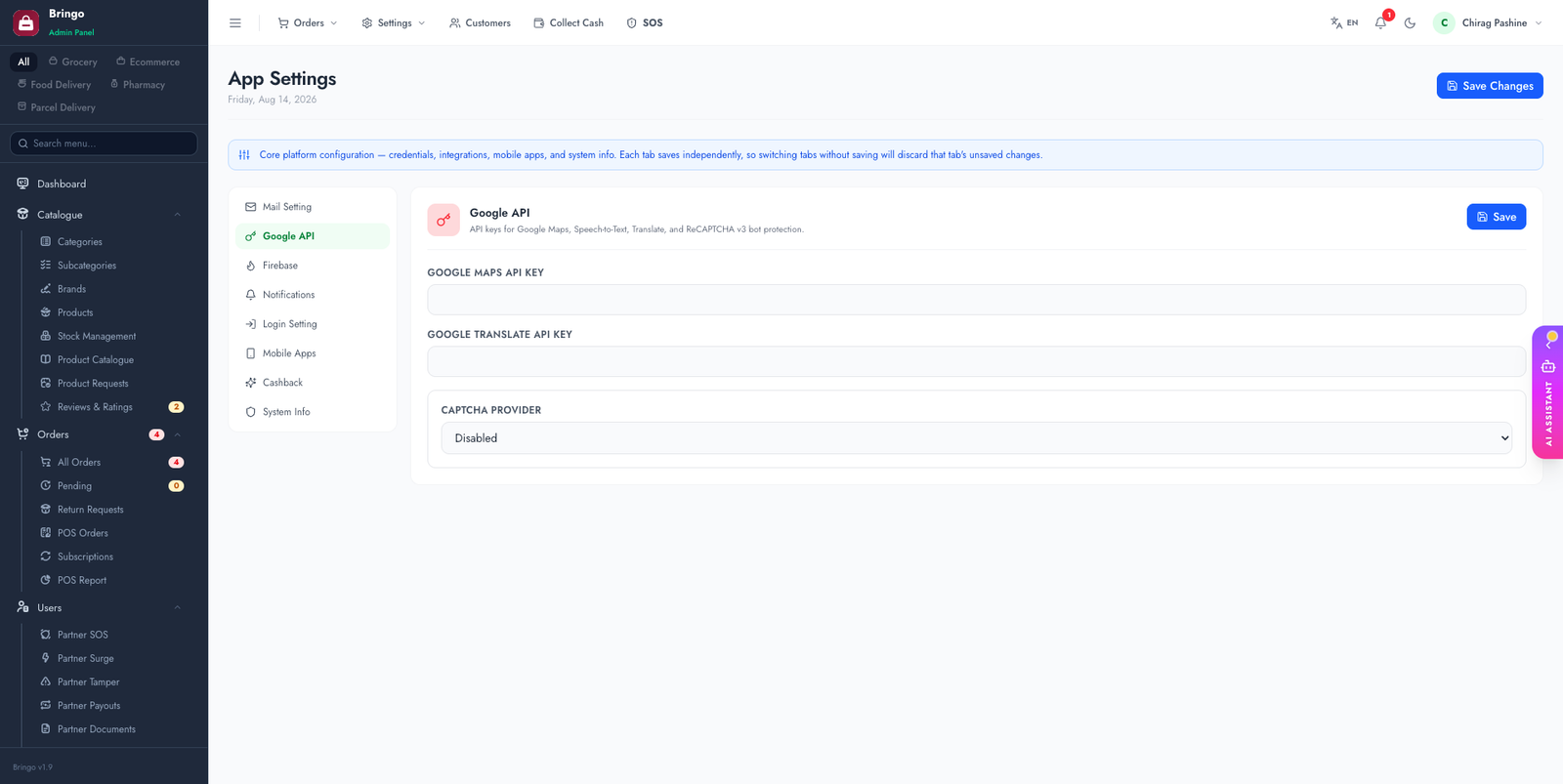
The native map inside the apps must use a key embedded at build time — Google verifies it against the app's package name + signing certificate, so it can't be served from the admin panel. The static tracking map and the website map both use the admin Map API Key.
Restrict your keys (important)
Unrestricted keys can be abused and run up your bill. In Cloud Console → Credentials, restrict each key:
💳
Google Maps requires a billing account. There's a generous monthly free tier, but add billing or maps will show an error watermark.
Troubleshooting
https://maps.googleapis.com/maps/api/staticmap?size=200x200&markers=color:red%7C21.17,79.65&key=YOUR_KEY in a browser. A map image = key OK; a text error names the exact problem (API not activated, referrer blocked, billing).👉
Next: Analytics.