Integrations
Analytics
Track visitors and conversions with Google Analytics 4, Google Tag Manager and the Meta (Facebook) Pixel. Configure everything in Admin → Analytics Settings — no code edits.
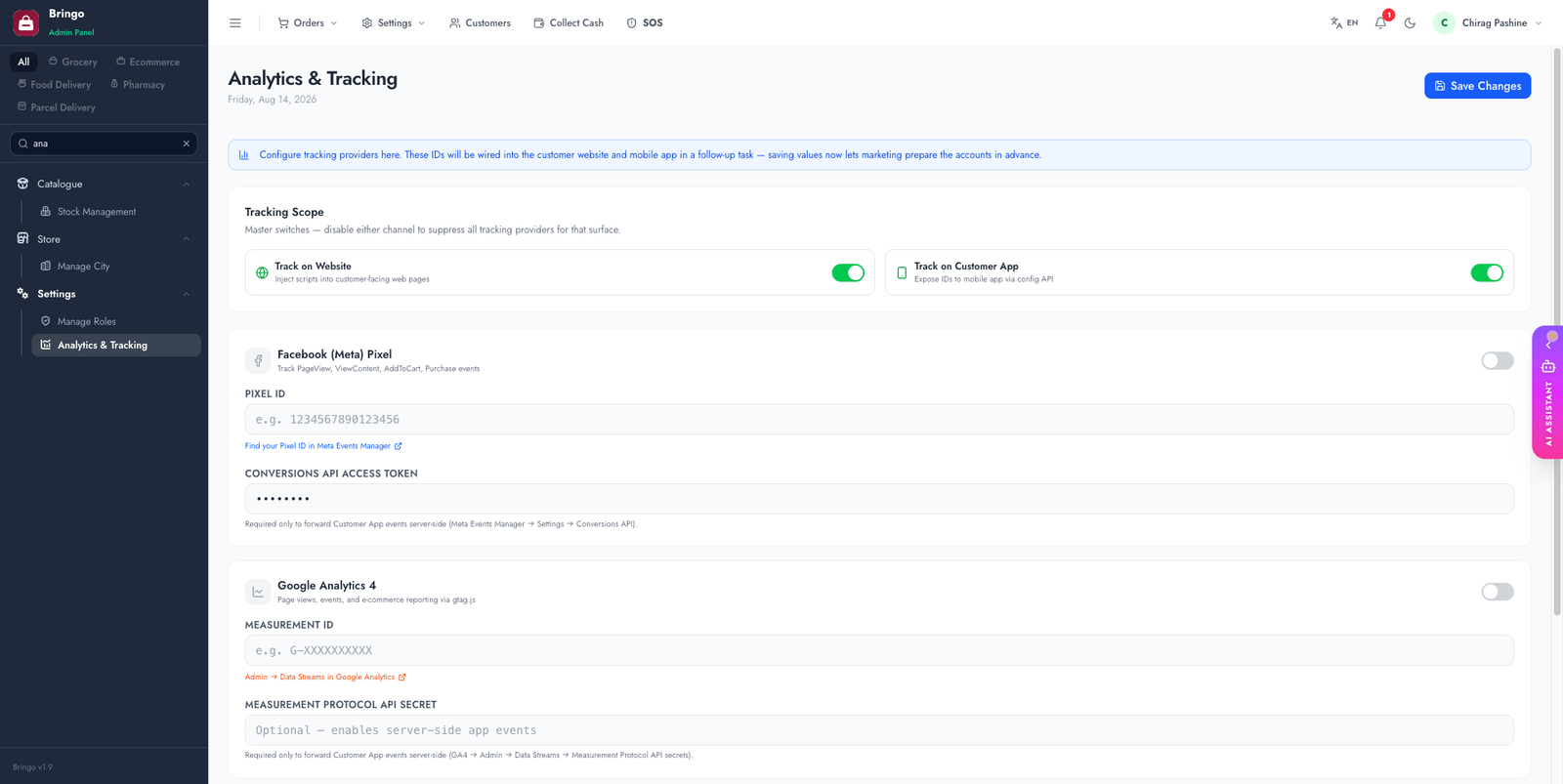
Google Analytics 4
- analytics.google.com → Admin → Data Streams → your web stream.
- Copy the Measurement ID (looks like
G-XXXXXXXXXX). - Paste it into the GA4 field and enable.
Google Tag Manager (optional)
If you prefer to manage tags through GTM, paste your container ID (GTM-XXXXXXX) into the GTM field. Use GTM or GA4 directly — not usually both.
Meta (Facebook) Pixel
- Meta Events Manager → Data Sources → your Pixel.
- Copy the Pixel ID (a long number).
- Paste it into the Pixel field and enable.
Conversions API (server-side)
Browser-side pixels lose events to ad blockers, iOS tracking prevention and dropped page-unloads — purchases are exactly the events you least want to lose. The Meta Conversions API sends the purchase event from your server instead, so it arrives regardless of the browser.
- Meta Events Manager → your Pixel → Settings → Conversions API → Generate access token.
- Paste the token into the Conversions API field in Admin → Analytics Settings.
- Save. Purchase events now fire server-side as well as from the browser.
Meta de-duplicates the browser and server copies of the same purchase automatically, so you will not double-count.
Turning tracking on per surface
Two master switches decide where tracking runs at all:
Switching a surface off suppresses every provider on that surface at once — useful when you need to stop tracking quickly without deleting your IDs.
Verify it is working
Troubleshooting
G-…, not the old UA-…), the surface switch is off, or your own visit is filtered by an internal-traffic rule.