Integrations
Push Notifications (FCM)
Order updates, promos and partner alerts are delivered with Firebase Cloud Messaging. Your server sends; the apps receive. One Firebase project powers all three apps.
What you need
- A Firebase project (the same one used for OTP) — guide.
- A Firebase service-account JSON key (lets your server send messages).
- Each app built with its
google-services.json/GoogleService-Info.plistso it can receive.
1. Get the service-account key
- Firebase Console → ⚙️ Project settings → Service accounts.
- Generate new private key → downloads a JSON file.
- Keep this file private — it can send notifications as your project.
2. Add it to the admin panel
- Admin → Settings → Firebase — this is the tab that holds the Firebase Admin SDK credentials used for push.
- Paste the JSON contents (or upload the file) and enter your Firebase Project ID.
- Save.
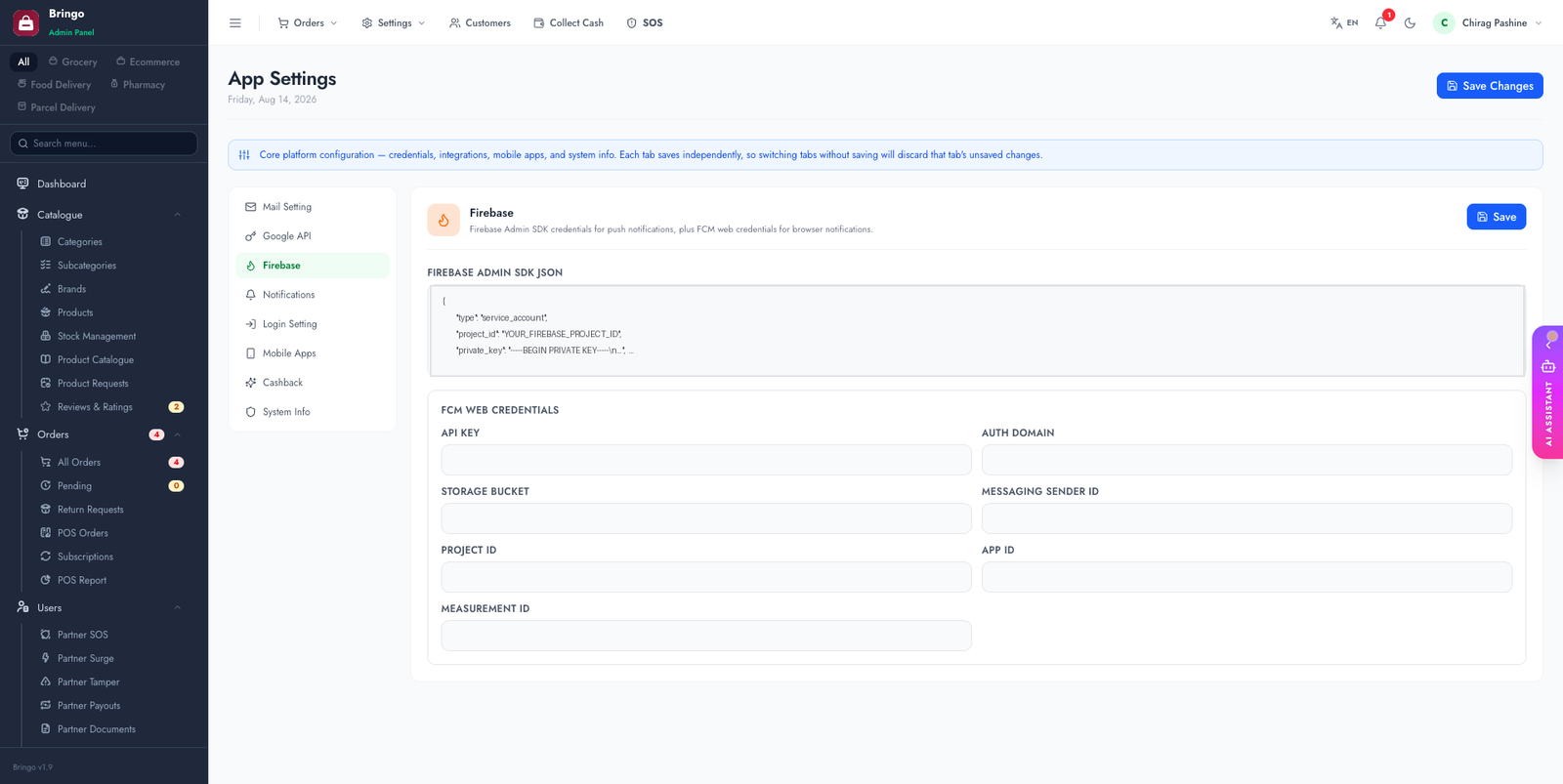
3. Test it
Use Admin → Notifications to send a test message, or place an order and confirm the seller/customer device receives a push. The apps register their device token automatically on login.
iOS: the extra step Android does not need
Android works as soon as google-services.json matches the package name. iOS additionally requires Apple's own push credential, and this is the single most common reason "push works on Android but not iPhone":
- Apple Developer → Certificates, Identifiers & Profiles → Keys → create a key with Apple Push Notifications service (APNs) enabled. You download the
.p8once — keep it. - Firebase Console → Project settings → Cloud Messaging → iOS app → upload the
.p8with its Key ID and your Team ID. - Xcode → your target → Signing & Capabilities → add Push Notifications, and add Background Modes → Remote notifications.
How a device becomes reachable
Useful to know when debugging: each app asks the OS for a token on launch, then sends it to your backend when the user signs in. The backend stores it against that user and uses it for every later message. Consequences worth remembering:
- A user who has never signed in on a device cannot receive targeted notifications there.
- Signing out removes the token — that is intended, so the next user of the phone does not receive the previous user's alerts.
- Reinstalling the app issues a new token; the old one becomes permanently invalid.
- On Android 13+ and iOS the user must grant notification permission at the prompt. Declining it is silent from the server's point of view — the send succeeds, nothing appears.
Troubleshooting
storage/logs/laravel.log for FCM errors.google-services.json must belong to the same project as the service-account JSON.