Customer App
Firebase & Login
This connects the app to your Firebase project (push + phone OTP) and enables Google, Facebook and Apple sign-in. First create a Firebase project — see the Firebase Project guide.
1. Add your Firebase config files
The shipped files are placeholders. Replace them with your own, downloaded from Firebase after registering your app's package name / bundle id:
android/app/google-services.jsonios/Runner/GoogleService-Info.plistgoogle-services.json / GoogleService-Info.plist contain YOUR_FIREBASE_PROJECT_ID placeholders. The app won't connect to Firebase until you drop in your real files. The package/bundle in those files must match your app's package name.2. Google Sign-In
- Web client id The app reads this from your backend — enter it once in Admin → Settings → Login Setting → Google → Client ID and every installed app picks it up at next launch, no rebuild needed. Use the Firebase Web OAuth client id (the
client_type: 3entry ingoogle-services.json).
If you'd rather bake it into the build, edit the fallback constant inlib/features/auth/social_auth_service.dart:
The admin value wins whenever it is set.static const String _fallbackClientId = 'YOUR_WEB_OAUTH_CLIENT_ID.apps.googleusercontent.com'; - SHA fingerprints Add your app's SHA-1 and SHA-256 to the Firebase Android app (required for Google sign-in & phone OTP). Get them with
./gradlew signingReportor from Play Console. - iOS URL scheme In
ios/Runner/Info.plist, set the reversed client id (from yourGoogleService-Info.plistREVERSED_CLIENT_ID) — replace thecom.googleusercontent.apps.YOUR_IOS_CLIENT_IDplaceholder.
3. Facebook Login
Create a Facebook app first — see the Facebook App guide. Then replace the placeholders:
android/app/src/main/res/values/strings.xml → facebook_app_id, facebook_client_token, fb_login_protocol_scheme (= fb<APP_ID>)ios/Runner/Info.plist → FacebookAppID, FacebookClientToken, and the fb<APP_ID> URL scheme4. Apple Sign-In (iOS)
In Xcode → Runner target → Signing & Capabilities, add Sign in with Apple. Enable the same capability for your App ID in the Apple Developer portal. (Apple login is iOS-only.)
5. Push notifications
- Android works once your
google-services.jsonis in place. - iOS — in Xcode add the Push Notifications and Background Modes → Remote notifications capabilities, and upload your APNs key in Firebase → Cloud Messaging.
Server-side sending is configured in Push Notifications (FCM).
6. Which login buttons appear?
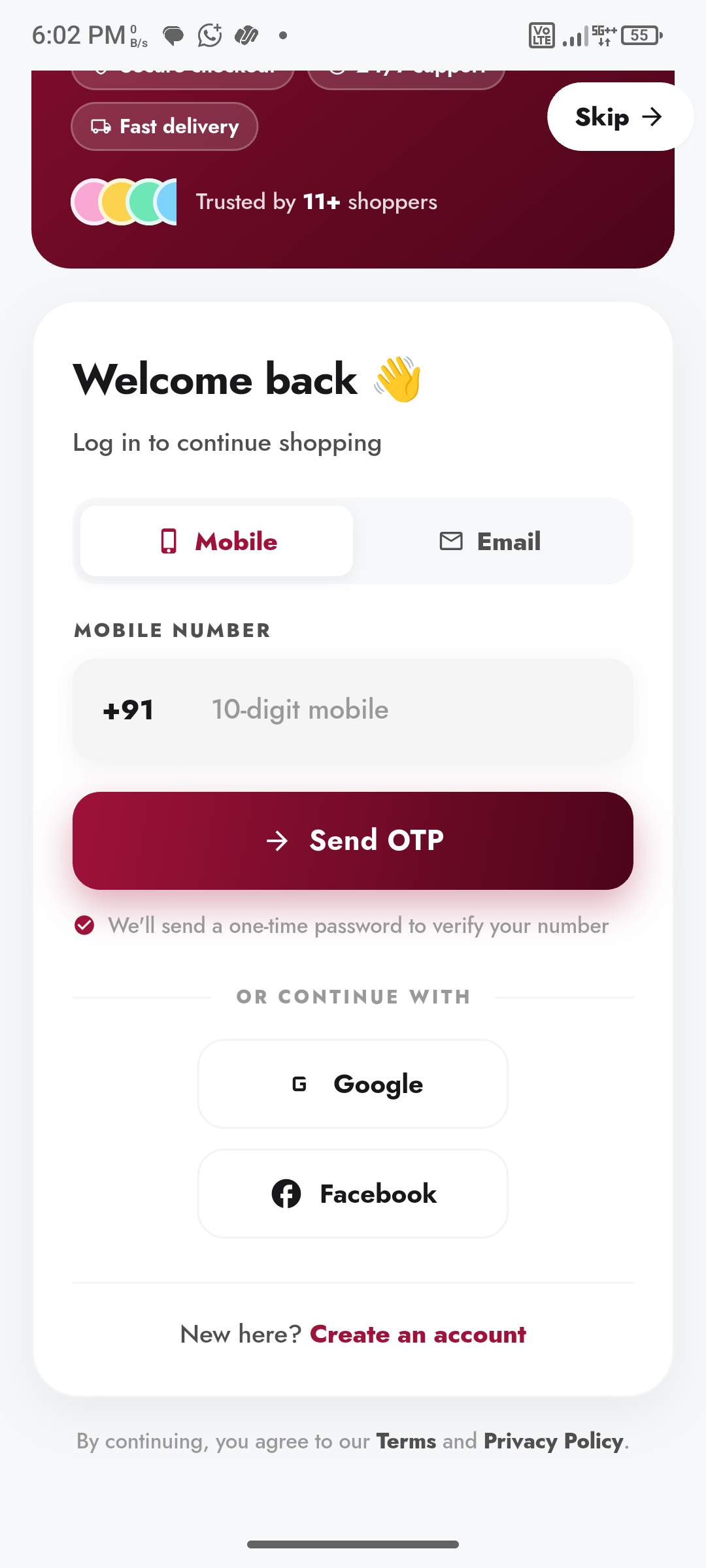
That's controlled from the admin panel — see Social Login. The app shows a provider's button only when you enable it there and the native keys above are set.