Store Setup
Email Templates
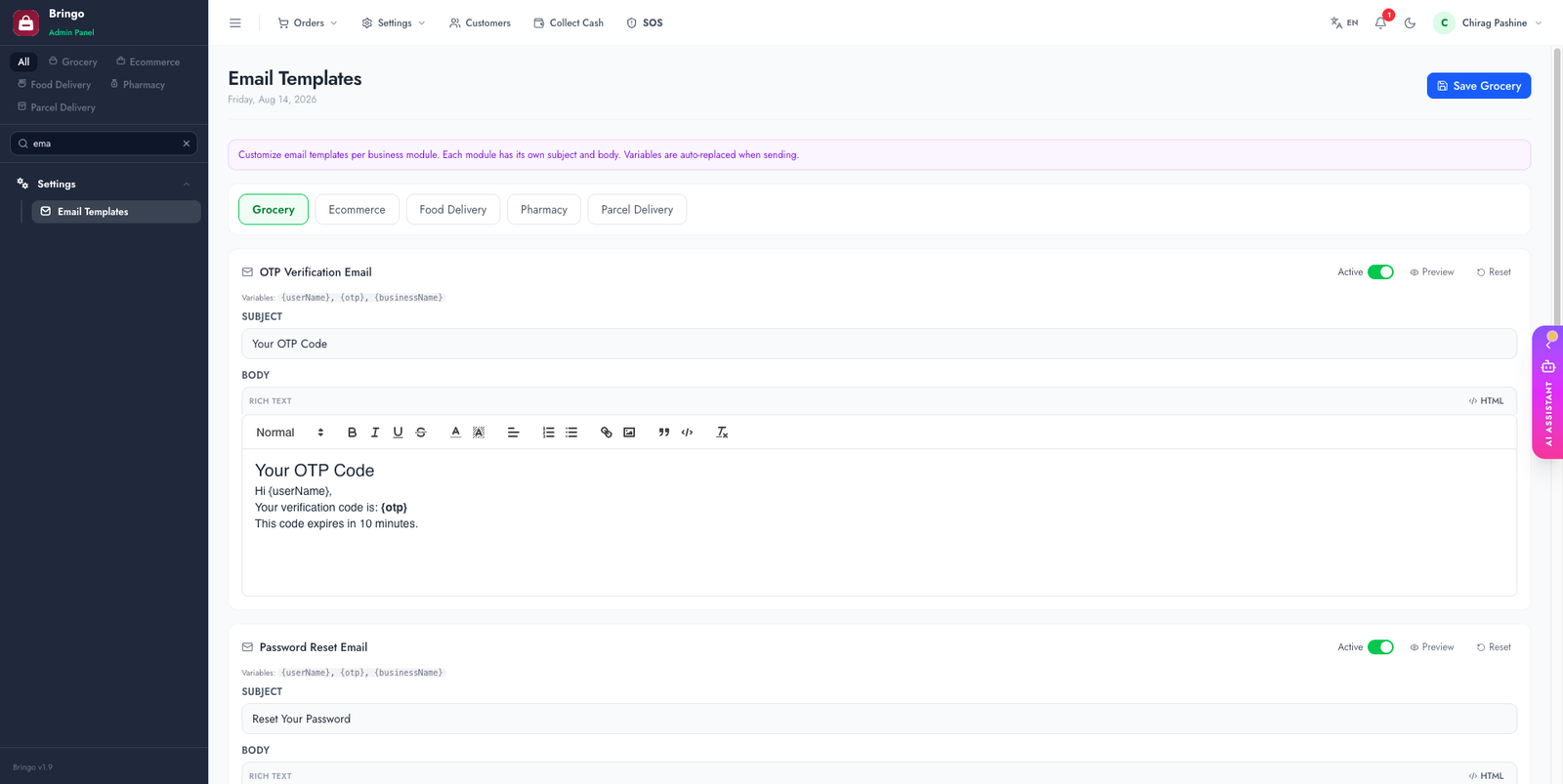
Customize the wording and look of the automated emails your store sends. Edit them in Admin → Email Templates.
What you can edit
- Order confirmation & status-update emails
- Account / welcome emails
- Password reset
- Other notification emails per module
How to edit
- Admin → Email Templates.
- Pick a template and edit its subject and body.
- Use the available placeholders (e.g. customer name, order number) — keep the
{{ }}tokens intact. - Save, or Reset to restore the default.
🧩
Don't remove or rename the placeholder tokens — they're filled with real values when the email is sent. Removing them breaks the email content.
✉️
Emails only send once SMTP is configured and the queue worker is running.
👉
Next: Media Storage.